

Accessing your favorite shows requires you to link your television service to your streaming profile. You pay for a subscription through your cable company, and you want to watch that content on your television. This guide explains how to authenticate your account and log into the Crave App using your TV Provider details. You will learn two primary methods to connect your devices.
Method 1: Using the QR Code on Your Television
The fastest way to connect your account involves using your smartphone camera. You bypass typing long web addresses using this method.
1. Turn on your Smart TV and launch the Crave App.
2. Select the “Sign In” option from the menu.
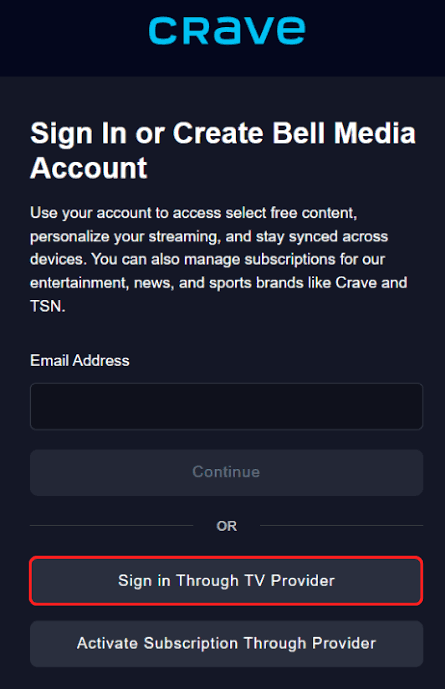
3. Choose “Sign In Through TV Provider” on your screen.
4. The television will display a QR Code and a web address.
5. Open the camera on your smartphone or tablet.
6. Point the camera at the QR Code. A link appears.
7. Tap the link to open a Web Browser.
8. Select your TV Provider from the displayed list.
9. Enter your account Credentials for your television service.
10. The system will verify your subscription.
Method 2: Using a Web Browser
If your phone camera fails to read the image, use a computer to complete the process manually.
1. Open the Crave App on your television visit website crave.ca/tvprovider.
2. Select “Sign In” and choose “Sign In Through TV Provider“.
3. Write down the Activation Code and the URL shown.
4. Open a Web Browser on your computer.
5. Type the URL exactly as it appears.
6. Select your TV Provider from the options.
7. Type your login Credentials for your television service.
8. Enter the Activation Code from your television screen.
9. Select “Activate” to link the devices.
Creating Your Bell Media Account
Crave recently updated its login security. You must now create a Bell Media Account to link your television package to the app.
After you enter your provider Credentials, the system redirects you to a new page. You must provide a personal email address. You do not need to use the email tied to your cable bill.
Create a secure password for this new profile. The system will email you a Verification Code. Open your email, copy the Verification Code, and paste it into the prompt on your screen. This final step permanently links your television package to your streaming profile.
Troubleshooting Login Issues
Sometimes the connection fails. You can fix most issues quickly.
Verify that your cable package includes an active Crave subscription go website crave.ca/begin. Check your active channel lineup online. Ensure you use the correct login Credentials.
Check your equipment. Ensure your television Operating System remains up to date. Outdated software blocks authentication requests. If the app freezes, delete the Crave App and reinstall it from your device store. Restarting your Smart TV resolves background glitches.
You May Also Like-How do I connect to Telemundo website telemundo.com/activar.
If the system fails to prompt you to create a Bell Media Account, go to the Bell Media account management website on a computer. Log in with your email and select “Verify Email”. This forces the system to complete the account creation loop.
You May Also Like-How do I log into AMC Plus on my TV visit website amcplus.com/provideractivate.
Conclusion
Logging into your account takes only a few minutes. You select your provider, verify your identity, and link your email. Using a smartphone camera makes the process simple. Follow the on-screen prompts, keep your passwords ready, and update your software. You can now access your streaming library directly on your television.